


 Page Type:
 Activities:



rematore - Apr 5, 2007 1:29 am - Voted 10/10
GoogleI've been using Google Earth to scout out my trips for a while now. The one beef I have with it is that many of my mountains, since they are remote, have low detail. Other than that, I don't really mind the inprecise posting of its satellite photos. I try to view the path I propose to take from all directions and angles, and I feel that Google Earth really helps with this.
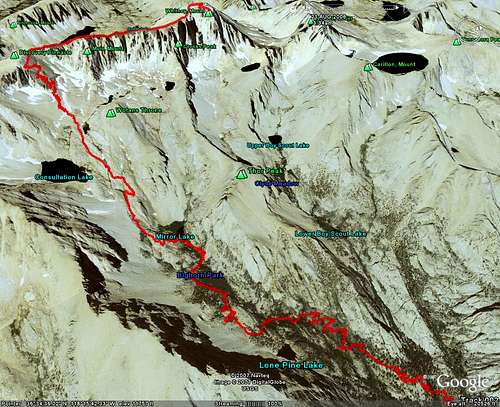
I also used it for Mount Whitney. I was scouting a route up Meysan Lake because that was the only trail I could get a permit on. There were no really good trip reports for the route, so I had to make an aerial viewed route. I was very nice.
Good Article.

chudder - Apr 5, 2007 9:30 pm - Voted 10/10
Re: GoogleFor higher detail, you can create a kml overlay for use with Google Earth that uses the USGS 1m aerial B&W photos. Go to http://www.gpsvisualizer.com/kml_overlay
I found it easiest to start with entering a center point (try Shasta at Lat: 41.40940 Long: -122.1939) and select the map type. I like the 2m topo overlays for my purposes.

Travis_ - Apr 5, 2007 1:32 am - Hasn't voted
thanksI find that by adding the USGS Topo Maps to Google Earth image it helps to pinpoint the routes rather then relying on the photos alone.
thanks for your input,

MoapaPk - Apr 5, 2007 1:02 pm - Voted 10/10
misregistrationHowdy -- here's the problem I discussed elsewhere:
Registration error example
Is there a tool to plot (draw) tracks in Google Earth a priori, then upload them to the GPS? That would be a useful capability, if the misregistration problems are addressed. You mention some uploading capability in GE+, but the track editing capabilities are not clear.
Travis_ - Apr 5, 2007 6:37 pm - Hasn't voted
Re: misregistrationI have seen elsewhere where my track is off by a significant difference in Google Maps (but not Google Earth), but when I opened the track at a later date everything was correctly lined up. I so not have any input with regards to that.
As for a tool to draw tracks before uploading them, the latest version of Garmin's MapSource is great for this. It has great features to join tracks, divide, draw, etc. a huge improvement over earlier versions. Prior to this upgrade I used www.globalmapper.com. It works well but the free demo version has limitations. I don't think Google Earth has any track editing features.

gimpilator - Apr 5, 2007 1:31 pm - Voted 10/10
Great Article!I'm glad to see Google Earth promoted. This article answered a lot of questions I had about adding files to Google Earth. Here is a more basic article on Google Earth that was written for Summit Post, for anyone who is interested.
Travis_ - Apr 5, 2007 6:39 pm - Hasn't voted
Re: Great Article!thanks for your input, these two article compliment each other well,

mgeo - Apr 5, 2007 8:18 pm - Hasn't voted
Google Earth is Decent, I hope they get better.Travis,
Nice page. There is also a pretty interesting review here: http://www.summitpost.org/article/252270/google-earth-a-new-tool-for-mountaineering.html
I like using Google Earth to store my tracklogs and waypoints in as well. I wish it had some more capabilities in the 2D realm in terms of easily displaying topographic maps and aerial photos. Ideally, if you could just view them instead of having to use another program to find them and then upload them as images. Also, I wonder how accurate the GPS data is represented. I don't know the projection or datum that google earth is using, but it seems decent. It is a handy tool to display the routes on and do some pre-planning (of course, it was hard to determine that we would be crawling on our bellies climbing the smooth looking ridge near Brent's Mtn.)
MoapaPk - Apr 5, 2007 8:24 pm - Voted 10/10
Re: Google Earth is Decent, I hope they get better.Supposedly, Google Earth uses WGS84. The common misregistration is about the same amount one might expect if NAD27 and WGS84 were confused -- but the error is not consistent in direction.
It took Terraserver years to correct the misregistration in some areas (the Whitney area is still badly misregistered in topos). I wonder if there is some way to alert the Google Earth people to errors in individual photos?
mgeo - Apr 5, 2007 8:46 pm - Hasn't voted
RegistrationI could see this being a bit of a pain, considering that most california topo (DRGs) are in Albers Equal Area and NAD27 or NAD83. And the user's manual states: Note - Currently, files using NAD83 projection are not supported by Google Earth.
Seems like I will just have to keep my unit in WGS84.
MoapaPk - Apr 5, 2007 9:41 pm - Voted 10/10
Re: RegistrationNAD83 and WGS84 should differ by less than a meter. NAD27 and WGS84 may be off by 200 meters.

camartinez - Apr 5, 2007 10:21 pm - Voted 9/10
Good articuleI have other way to do what you wanted to do, it´s easier and it is free too..
Yo download gpstrackmaker and download your garmin maps to it.
Press google earth icon and that´s it......you can have yor route on google earth screen and you can even see your tracklog on realtime if you have connected your gps connected to your laptop and google earth images on your cache memory...have fun....
http://www.gpstm.com/
Travis_ - Apr 5, 2007 10:32 pm - Hasn't voted
Re: Good articulethanks! I am going to try that out,

mauri pelto - Apr 10, 2007 7:32 pm - Hasn't voted
YahooThe GPS visualizer works great. I have done alot of google earth work and always aligned the images painstakingly myself. Now if only some of those images were a little newer, however, they do have great detail.
vht - Apr 13, 2007 4:21 am - Hasn't voted
MapSourceThe website of the newest MapSource should begin with "www8....", otherwise it doesn't work.
Inspirating and really nice article!
Comments
Post a Comment